My Stata editor: NotePad++
This post is part of an updated version of the chapters of the third part of the handbook Poverty and inequality measures in practice internally available at the World Bank intranet.
Even though Stata has improved its do-file editor in version 13, it is still not a great tool for programming efficiently. Instead, we recommend using NotePad++ (NP++). This is an excellent program that provides many useful features for writing Stata code quickly and easily. In this post, I provide you with all the necessary information to install NP++ and give you some tips on how to use it efficiently.
Installation
- Go to notepad-plus-plus.org and install the latest version.
- Make sure the box “don’t use App Data” is unchecked
- (Optional but recommended) In case you require admin rights to install plugins, ask IT to install the plugins below. To install plugins go to upper menu and click on
Plugins→Plugins Admin, then pick the plugins and click install.
| Plugin |
|---|
| Code Alignment |
| Compare |
| DSpellCheck |
| Indent by Fold |
| NPPGist |
Once you have installed NP++ in your computer, go to Friedrich Huebler’s webpage and download the zip files rundolines51.zip and rundo51.zip provided at the top of the page.
Extract the content of the zip files in the directory
C:/ado/personalIn Huebler’s page, scroll down to part 3 “Installation” and follow the three steps. Remember:
- You do not need to go further than part “3” in the installation process
- Step 3 suggests getting a syntax-highlighting tool for Stata on the NotePad++ wiki. You could use the Stata syntax highlighter suggested in Huebler’s page, or you can use mine (instructions below).
Follow items 1 and 2 in step 3. If you want to use the same shortcuts as the Stata editor, you can use
Ctrl+DandCtrl+Shift+Dshortcuts for running do-file lines or entire do-files, respectively. However, shortcuts with theShiftorCtrlkeys might result in a “stuck” key. To avoid this, you can useF9andF10as suggested by Huebler.
Getting a nice syntax highlighting
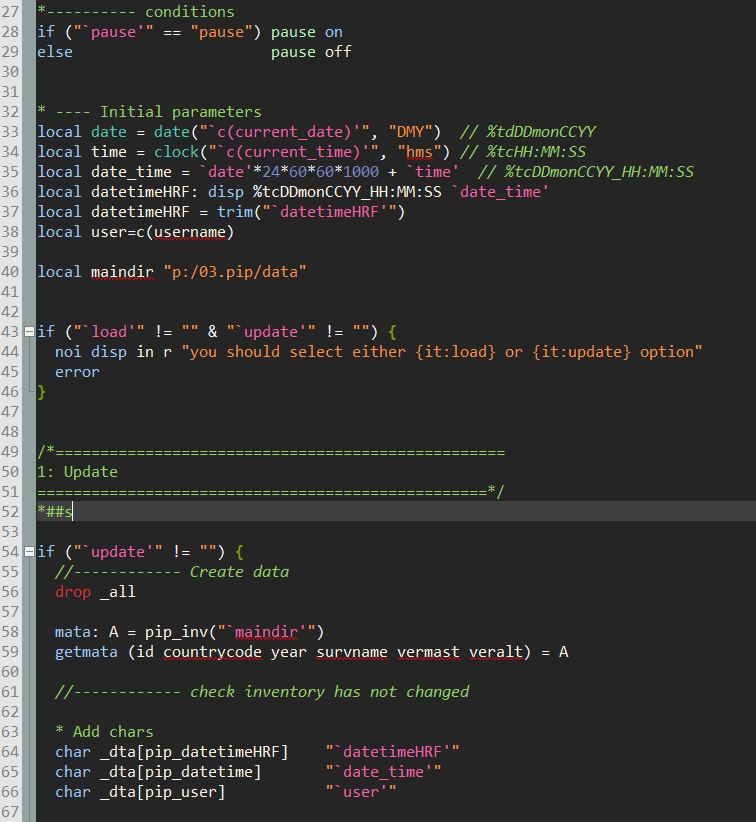
I do not like the Stata syntax highlighting suggested by Huebler, so based on the color palette Solarized created by Ethan Schoonover, I developed my own. You may find it in my GitHub repository. Here is what you need to do:
- Run in Stata the following lines. Make sure to modify the directory of the first local.
local dir    "c:/Users/(USERNAME)/AppData/Roaming/Notepad++" // modify this
local source "https://raw.githubusercontent.com/randrescastaneda/NPplusplus_to_Stata/master"

local files "shortcuts.xml stylers.xml userDefineLang.xml"
foreach file of local files {
  copy "`source'/`file'" "`dir'/`file'", replace
}
Restart NP++
That’s it. Your new Stata syntax highlighting should look something like this:
Creating new do-files
To start a new do-file from scratch using NP++, you need to click on the Language tab and then click Stata. Otherwise, it will look like a plain text file. The first time you save your file, make sure you add the extension .do or .ado.
However, you should not have the need to start a new do-file or ado-file from scratch if you use the command dotemplate available in SSC. Also, you can see the development version in my GitHub repository and read my post A nice way to organize your do-files: dotemplate.
To set up your computer to read do-files on NP++ by default, open a Windows Explorer window and go to a directory that contains any do-file. Right Click on any do-file and click Open with → Choose Default program. If NP++ is not listed in the Recommended Programs section, click Browse and look for NP++. Finally, open the executable file notepad++.exe and check the box Always use the selected program to open this kind of file.
General tips
- To quickly convert a line (or several lines) into a comment, place the cursor on the desired line and press
Ctrl+Q. PressCtrl+Qagain to uncomment. - Comment several lines with the general comment style (
/* */) by pressingCtrl+Shift+Q. - Convert text into upper case or lower case letters by selecting the words and press
Ctrl+Shift+UandCtrl+U, respectively. - To edit several lines at the same time, just place the cursor where you need it and press the
Alt+Shift+Arrowkey to be in ‘column mode’ edition. - All loops or sections opened with
{and closed with}can be collapsed or hidden as you wish by clicking the+sign at the left side of the starting code-line.